

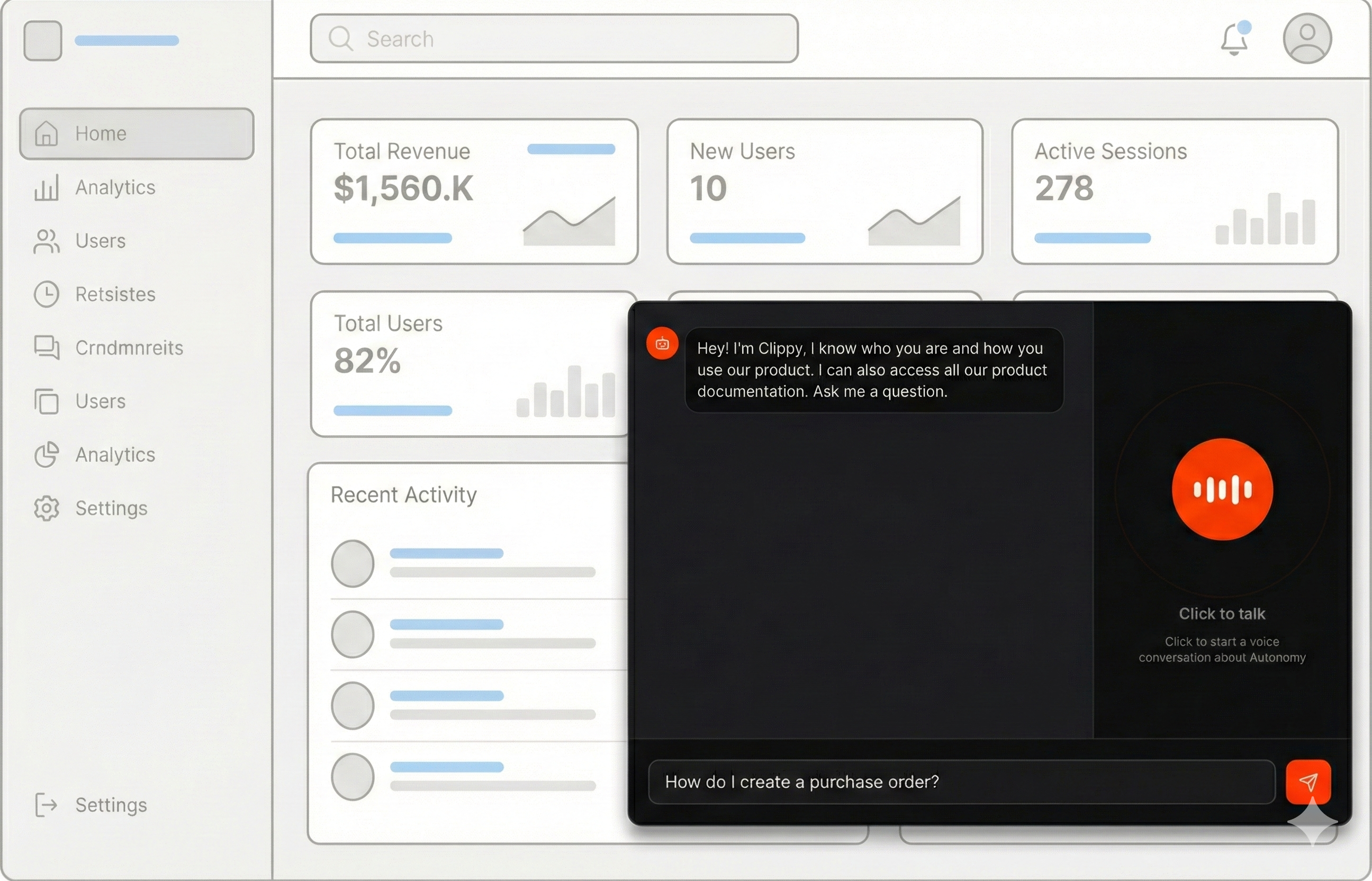
Make your docs come alive!
In the next few minutes you can launch an app and apis for agents that:- Speak answers drawn from your docs.
- Search your docs using vector embeddings.
- Respond fast using a two-agent delegation pattern.
- Reload docs periodically to stay current.
- Work through voice and text.
- Trigger your product’s APIs to take actions.
1
Sign up and install the autonomy command.
Complete the steps to get started with Autonomy.
2
Get the example code
File Structure:
3
Point to your docs
Open The example expects an
images/main/main.py and update the INDEX_URL to point to your documentation:images/main/main.py
llms.txt file containing markdown links to your documentation pages. This format is common with documentation platforms like Mintlify, Gitbook, and others.4
Deploy
Customize the agents
Update the instructions The agent instructions define how your agent responds. Customize these for your product:images/main/main.py
images/main/main.py
Voice Configuration Options
Multilingual Support: The voice agent can detect and transcribe speech in multiple languages.
If a user speaks in German, for example, the system may transcribe and respond in German automatically.
To control this behavior, add language instructions to your agent configuration — either enforcing
English responses by default or enabling intentional multilingual support.
images/main/main.py
images/main/main.py
Learn how it works
Loading Documentation The example downloads documentation from URLs and loads them into the knowledge base:images/main/main.py
add_document method fetches the content from the URL and indexes it for semantic search.
Voice Agent Delegation
The voice agent uses a two-step pattern for low-latency responses:
images/main/main.py
images/main/main.py
images/main/main.py
Add it to your product
Autonomy automatically provides APIs and streaming infrastructure for every agent you create. This makes is simple to integrate the agents that you created above into your product. HTTP API — Every agent gets HTTP endpoints out of the box:/dev/null/example.js
scope and conversation parameters. Each combination gets its own
Context and Memory:
/dev/null/example.js
index.html that you
can adapt for your product. Here are the key parts:
WebSocket Connection
Connect to the voice agent with multi-tenant isolation:
images/main/index.html
scope- Isolates memory per user. Each visitor gets their own conversation history.conversation- Isolates memory per session. A user can have multiple separate conversations.
images/main/index.html
images/main/index.html
images/main/index.html
images/main/index.html
Learn more
Voice
Give agents the ability to listen and speak.
Knowledge bases
Give agents the ability to search a corpus of documents.
Programming Interfaces
How to create APIs for Autonomy applications.
Filesystem access
Give agents the ability to read, write, and search files.
Knowledge base returns no results
Knowledge base returns no results
- Check that
max_distanceisn’t too strict (try 0.4 or higher). - Verify documents loaded successfully by checking the
/refreshendpoint response. - Ensure the embedding model matches your content language.
Voice not working in browser
Voice not working in browser
- Ensure your browser has microphone permissions.
- Use Chrome or Edge for best WebSocket and Web Audio API support.
- Check the browser console for WebSocket connection errors.
Agent gives inaccurate answers
Agent gives inaccurate answers
- Adjust the instructions to emphasize using the search tool.
- Increase
max_resultsto provide more context. - Lower
max_distanceto retrieve more relevant chunks. - Consider adding filesystem tools for complete document access.
Responses are too slow
Responses are too slow
- Reduce
max_tokensin the model configuration. - Use a faster model for the primary agent.
- Ensure your knowledge base isn’t too large.
- Consider using
size: bigin your pod configuration for better performance.